My favorite app
Great app, easy to use. Helps our small business save time and money to create different marketing materials professionally. Thank you.
Brand your entire photo library in minutes. Bulk add logo to images, set the size of your logo, and download every file with one click.
Trusted by creatives at









Drag and drop up to 10,000 photos or connect your Dropbox to import an entire folder. Pixelcut accepts JPG, PNG, WEBP, and HEIC files for both images and logos.
Place your logo in any corner, from top-left to bottom-right, and resize it to fit. Hit process once and that setting applies across your full batch of images.
Download all branded images as a single ZIP file or send them straight to Dropbox. Export in PNG, JPG, or WEBP depending on where your photos need to go next.
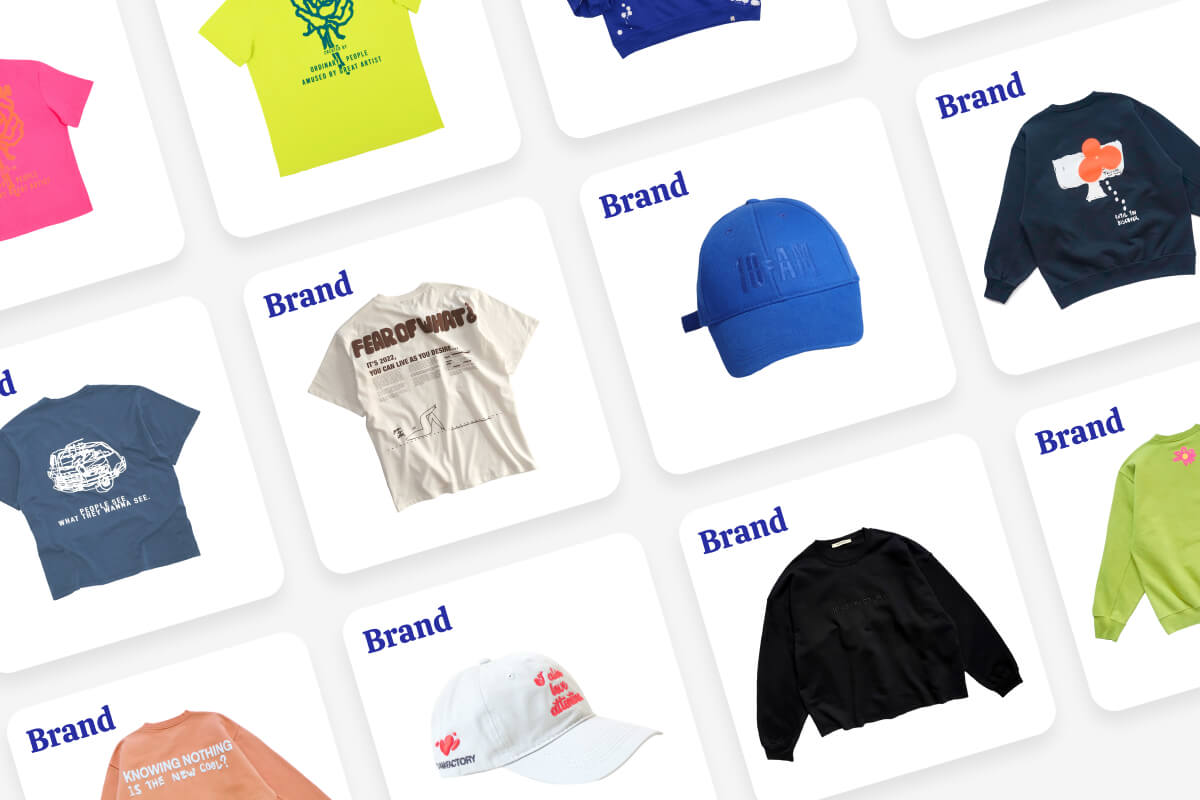
Branding hundreds of product shots one at a time turns a quick task into a full day of repetitive clicks. Pixelcut lets you bulk add logo to images in a single batch, handling up to 10,000 photos without slowing down. Upload your entire catalog, pick a position, set the size, and hit process. Every image gets the same consistent logo placement.
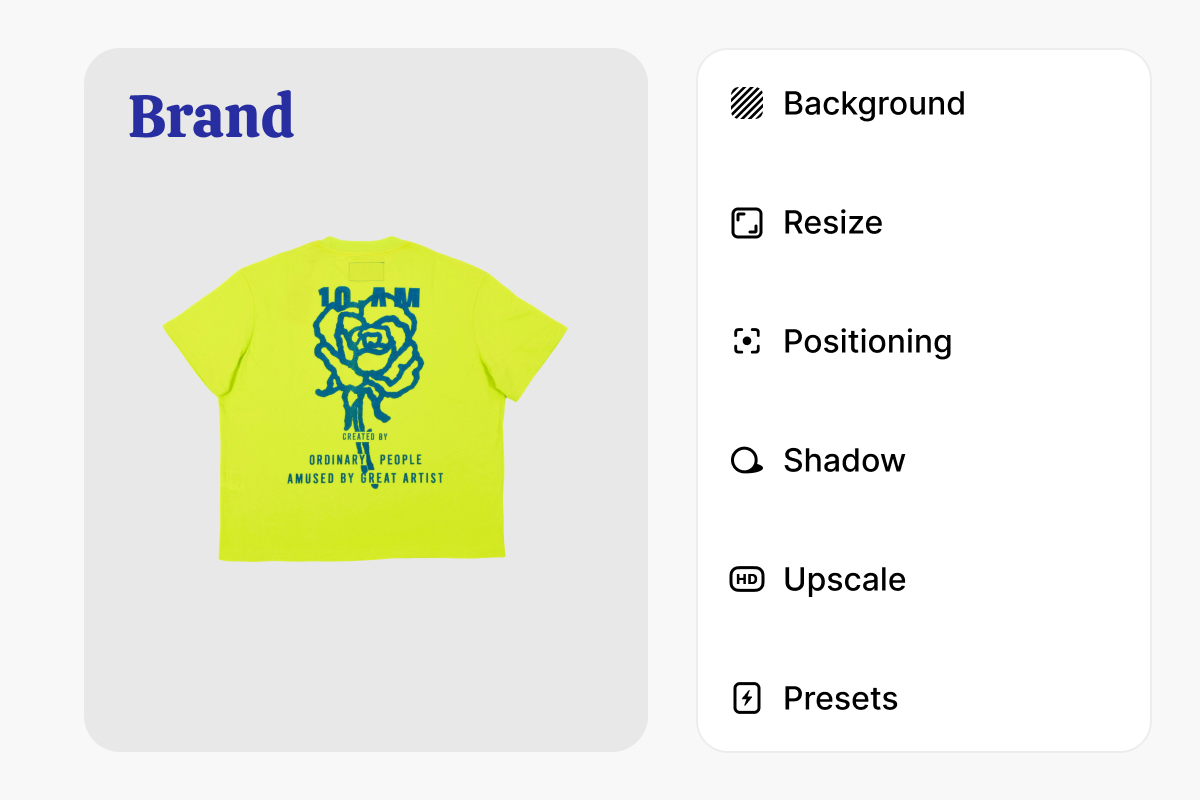
One position fits most shots, but a handful always need adjustments. After batch processing, open any image individually to reposition, resize, or adjust the logo placement for that specific photo. Pixelcut gives you single-image precision on top of batch-level speed, so you never have to start over or run a second upload just to fix a few outliers in the set.
Whether you sell on an online marketplace, run a photography business, or manage social media accounts, your images need consistent branding. Bulk add logo to images across product listings so every item carries your mark. Stamp your portfolio before sharing proofs with clients. Prep social posts with your logo already in place. One batch handles the full collection, so branding stops being a bottleneck in your publishing workflow.
A logo with a white box behind it looks out of place on every photo it touches. Run your logo through the built-in background remover to get a clean transparent PNG before applying it in batch. The AI strips away solid backgrounds and leaves crisp edges around text, icons, and shapes. Do this once, save the transparent version, and reuse it across every batch going forward.
Great app, easy to use. Helps our small business save time and money to create different marketing materials professionally. Thank you.
I need a good background remover for my work and I've been through them all it feels like. This one is the best by far. It's so easy to use and the results always look amazing. Thank you Pixelcut!
It's amazingly easy and gives the perfect results for my bags and accessories. It looks like it was done by a professional photographer.
Upload up to 10,000 images, position your logo in any corner, resize it to fit, and download every branded photo as a ZIP. One batch, thousands of images, all with your logo.