Pixelcut
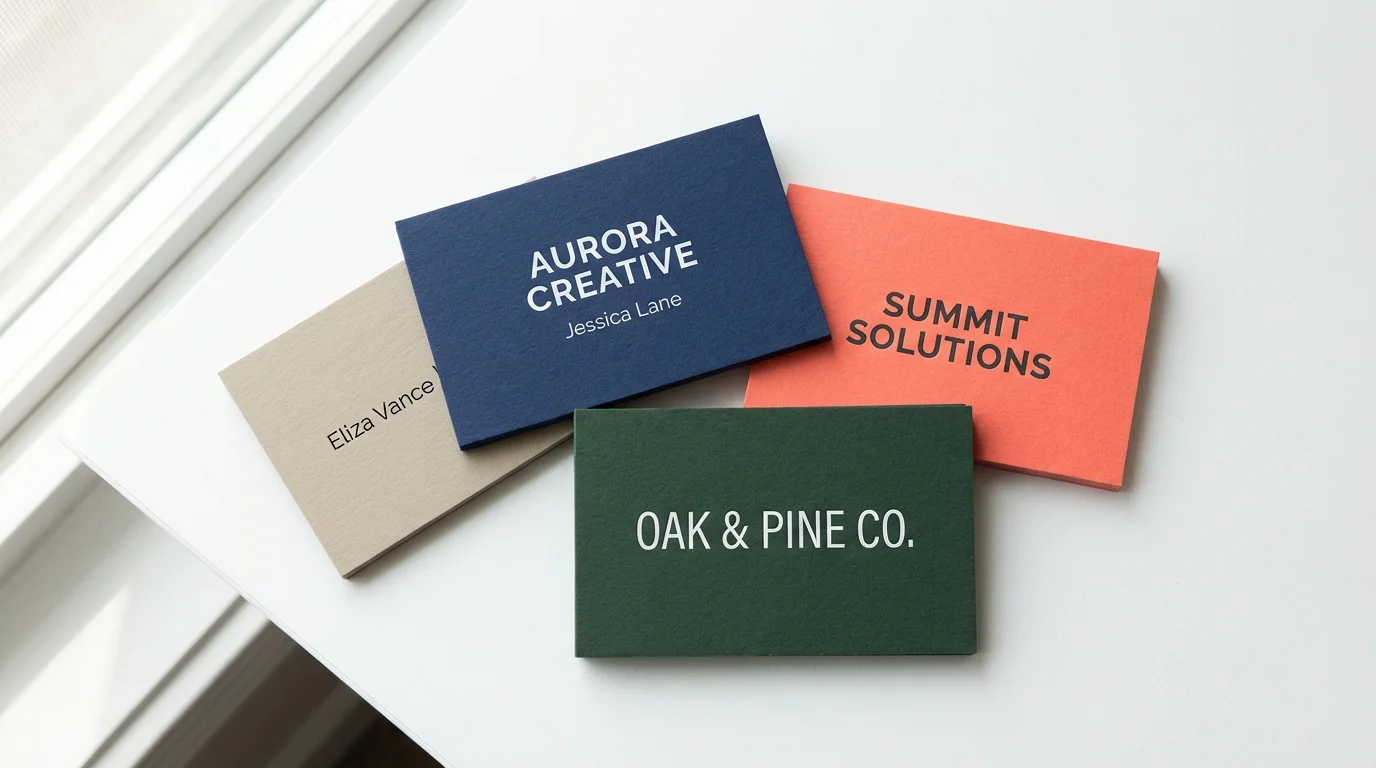
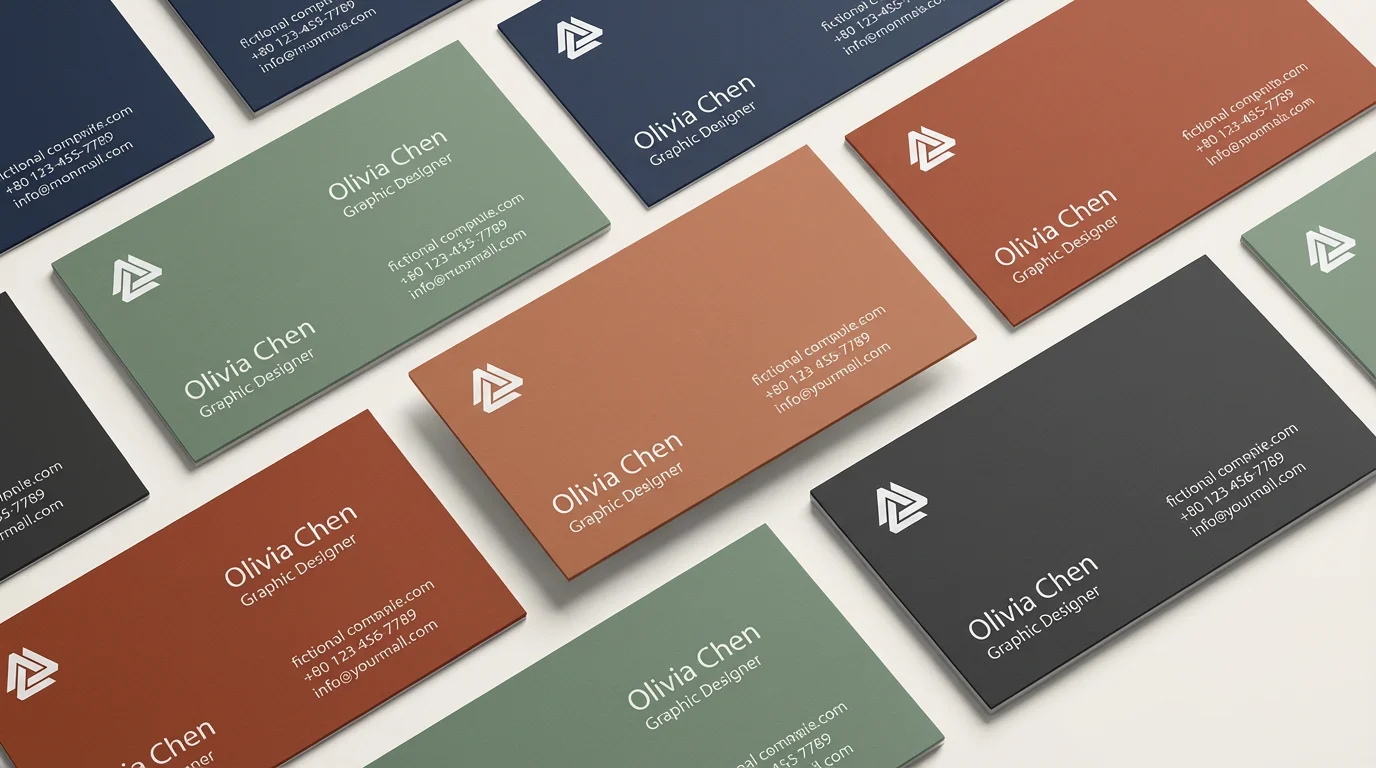
An eye-catching arrangement of business cards showcasing different background colors like sage green, terracotta, and charcoal gray, transformed from an original navy blue design, all featuring the same professional layout.

AI Business Card Background Color Generator

Trusted by 70 million people
171,800 Reviews
Developer API
Available on iPhone & Android

How to Change Your Business Card Background Color

  1. 1

    Upload your business card

    Start by uploading a clear photo of your business card. Make sure the image is well-lit and shows the entire card.

  2. 2

    Describe the new background

    In the prompt box, type the new background color you want. Be specific, like 'deep navy blue' or 'light cream color'.

  3. 3

    Generate your new card

    Click the generate button and let the AI work. It will replace the old background with the new color you described.

  4. 4

    Download your updated design

    Your new business card design is ready to be saved. Download the high-resolution image in PNG or JPEG format for free.

Quickly find the perfect background for your business card by testing different colors in seconds. Upload your existing design and simply describe the new color you envision. Whether you want to try a classic navy blue, a vibrant green, or a soft pastel, our AI tool applies the changes instantly. This allows you to visualize multiple options without the commitment or cost of a new print order. Experimenting with color has never been easier, helping you refine your professional image with confidence and speed.

Instantly Test New Color Palettes

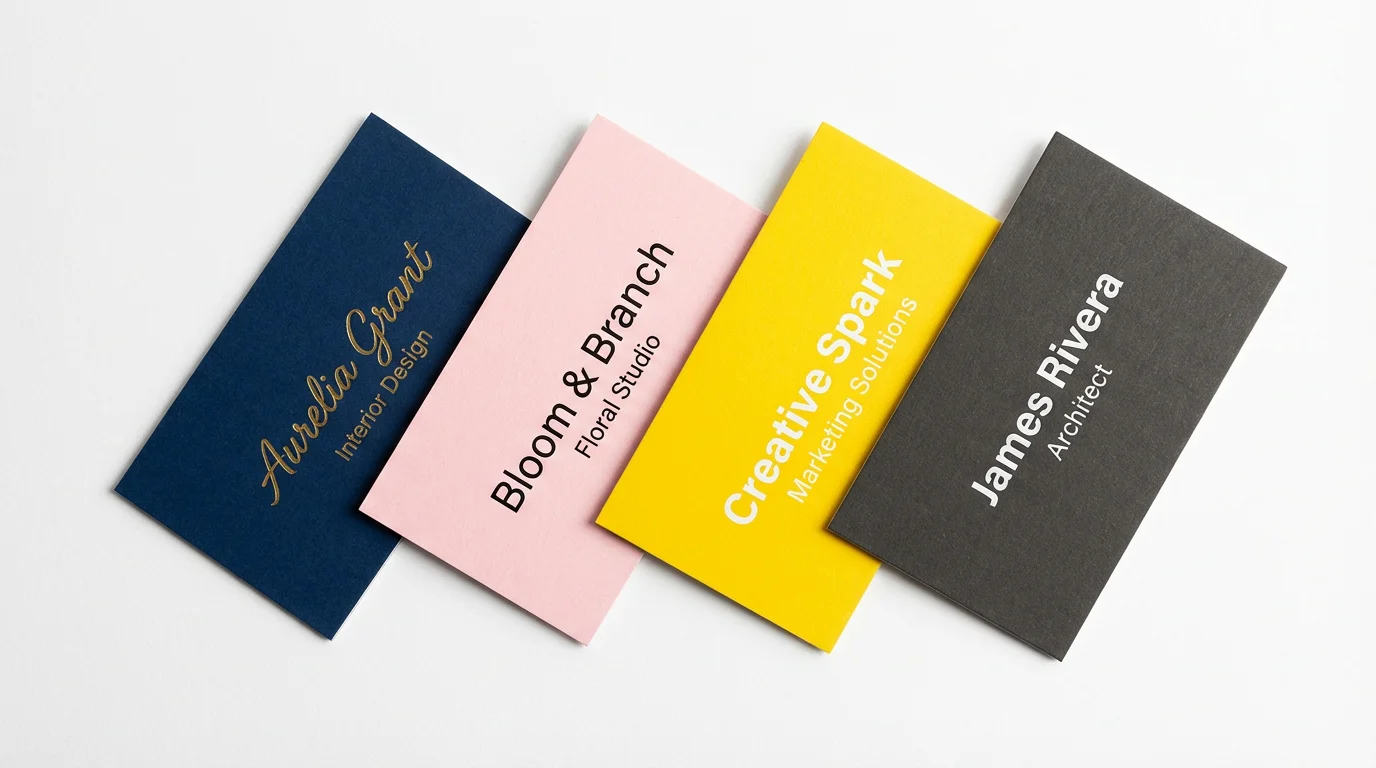
A collection of professionally designed business cards fanned out on a white surface, each featuring a different background color: navy blue, pastel pink, bright yellow, and charcoal gray.
Ensure your business card is a perfect reflection of your brand identity. Our tool lets you change the background color to align with your company's logo, website, and marketing materials. You can describe specific shades to maintain brand consistency, which is key for building recognition. A cohesive color scheme across all your professional assets presents a polished and unified image. This simple change can make your business card a more effective networking tool that reinforces your brand's message at a glance.

Match Your Business Card to Your Brand

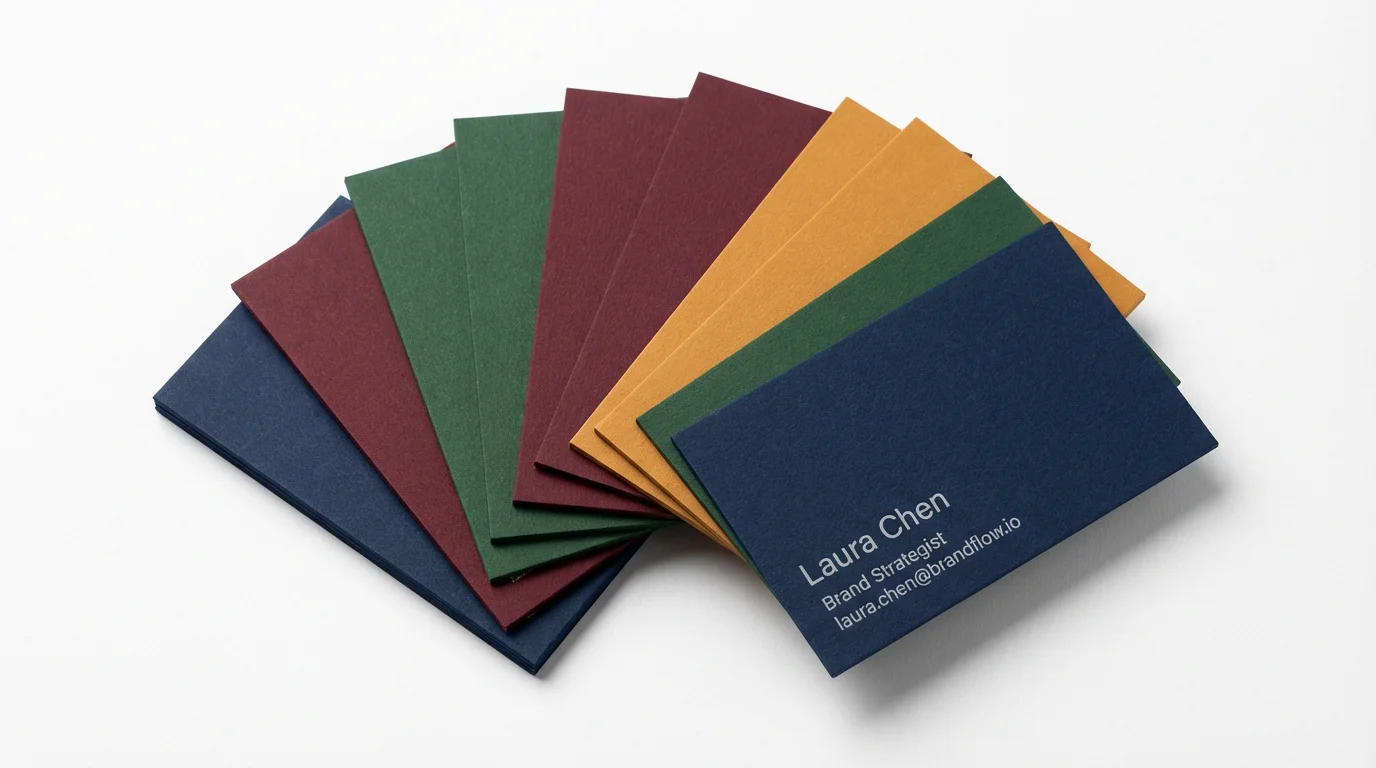
A professional mockup of several business cards fanned out on a white background, each showcasing a different solid color like navy, green, burgundy, and yellow, illustrating background color options.
Elevate your card's design beyond a simple color swap. With our AI tool, you can not only change the background to any color but also add subtle textures for a more sophisticated feel. Describe a linen finish, a matte look, or a gentle gradient to add depth and character to your card. The right background color can significantly impact how your brand is perceived; for instance, dark blues and grays can convey trust and authority. Create a card that looks and feels premium without needing any design software.

Explore Professional Colors and Textures

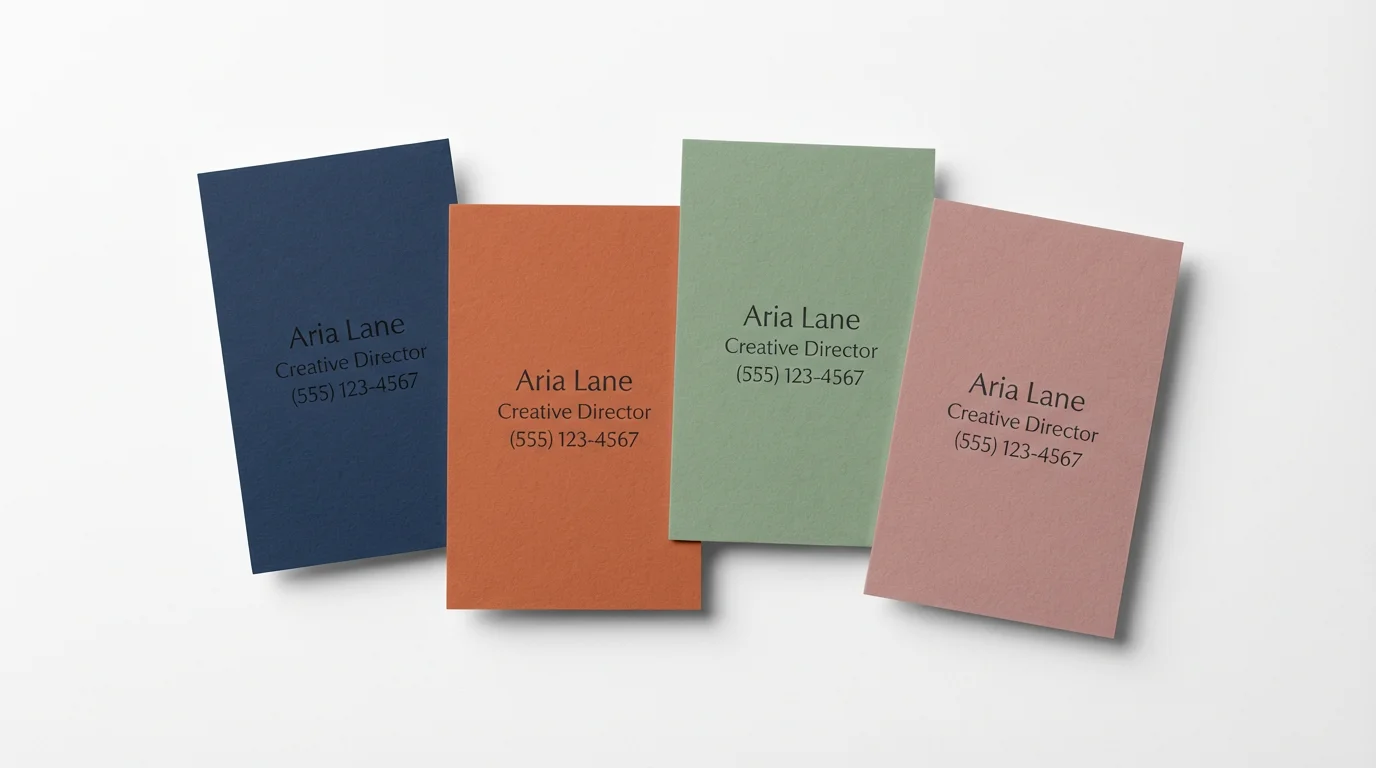
A minimalist arrangement of four business cards on a white surface, each featuring a different solid background color: navy blue, terracotta, sage green, and dusty rose.
It’s Fast: Go from your current design to a refreshed look in seconds. It's Easy to Use: No design experience needed. Just upload your card and type a prompt. It’s AI-Powered: Our tool intelligently applies new colors and textures while preserving your card's text and logo. It's Cost-Effective: Preview changes and perfect your design before you decide to print, saving you time and money. It’s Versatile: Try out an endless spectrum of colors, from bold and vibrant to minimalist and neutral.

Why use Pixelcut's AI to change business card backgrounds?

A fan of five business cards, each with a different modern background color, navy, coral, green, gray, and yellow, arranged on a clean white surface.
Brand Refresh: Seamlessly update your existing business cards to match new company branding. A/B Testing: Generate several background color variations to see which design resonates most with your audience. Event-Specific Cards: Create a special edition of your business card with a unique background color for a trade show, conference, or networking event. Professional Update: Change your card's background to reflect a promotion or a shift into a different industry, such as moving to a more corporate role that calls for a traditional color like black or navy.

Business Card Background Color Use Cases

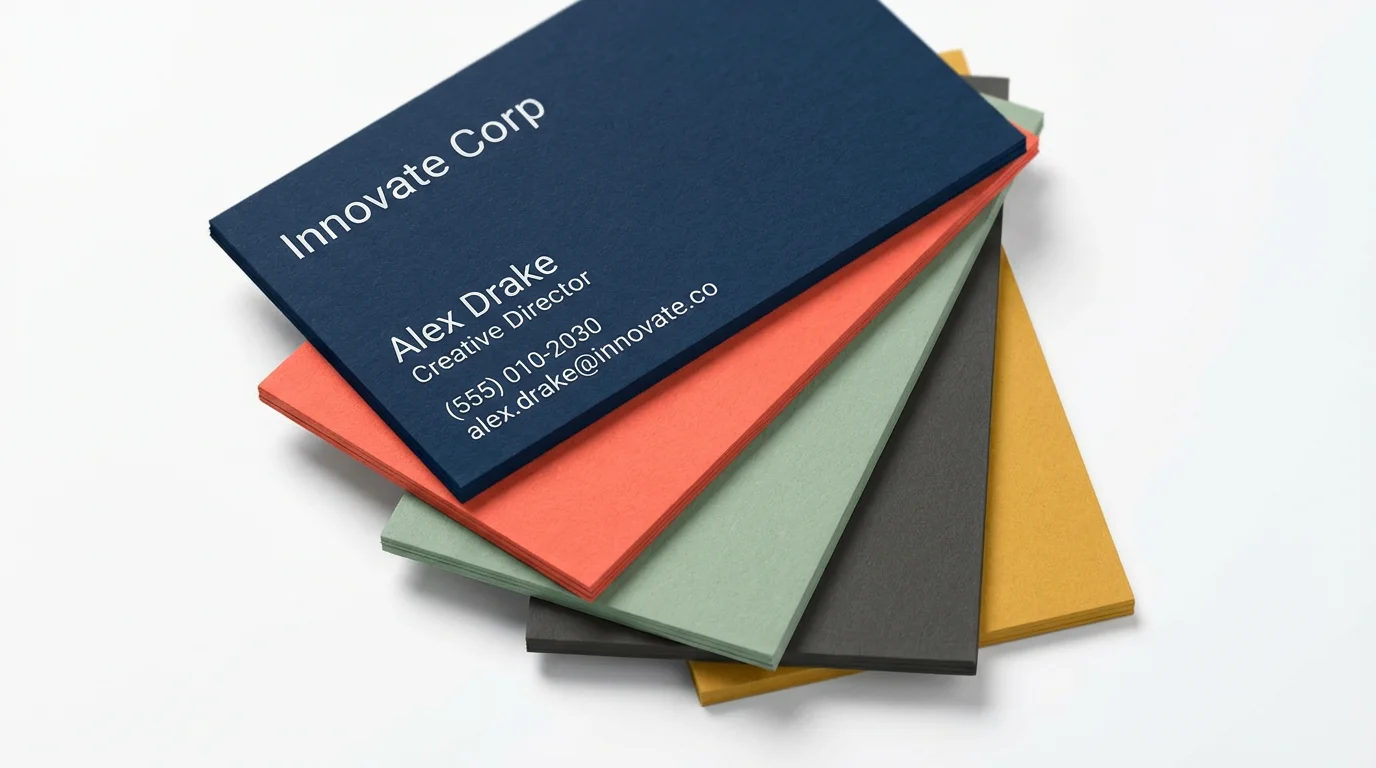
An overhead shot of several professionally designed business cards laid out on a white surface, each featuring a different background color like navy blue, coral, and forest green.

Frequently Asked Questions

Pixelcut is loved by over 2 million people

  • My favorite app

    Great app, easy to use. Helps our small business save time and money to create different marketing materials professionally. Thank you.
    Shaelyn D.
  • Best background remover

    I need a good background remover for my work and I've been through them all it feels like. This one is the best by far. It's so easy to use and the results always look amazing. Thank you Pixelcut!
    Kira H.
  • Love it

    It's amazingly easy and gives the perfect results for my bags and accessories. It looks like it was done by a professional photographer.
    Mary J.