My favorite app
Great app, easy to use. Helps our small business save time and money to create different marketing materials professionally. Thank you.
Put your portrait or product on the blue background you choose. Pixelcut clears the old backdrop before you pick your shade. Upload your image.
Choose a portrait, headshot or product shot from your phone or computer. Any background behind your subject works fine, from a busy living room to a plain office wall.
Pixelcut’s AI spots your subject and removes the old background for you. Your cutout opens in the editor, ready for you to give your photo a fresh new look.
Open the Background options and click the color picker. Pick any shade of blue you like, from a soft sky blue to a deep navy. Try a few until it suits your photo.
Happy with the look? Download your photo on blue and put it to work wherever you need it, from a professional profile to your online store or your next social post.
Give the photo you already have a setting that fits how you’ll use it. A blue backdrop gives you control over how the image looks when the original setting gets in the way. With Pixelcut, keep the expression or angle you captured and change the setting around it. Even a photo you had one chance to take can fit the way you want to present it.

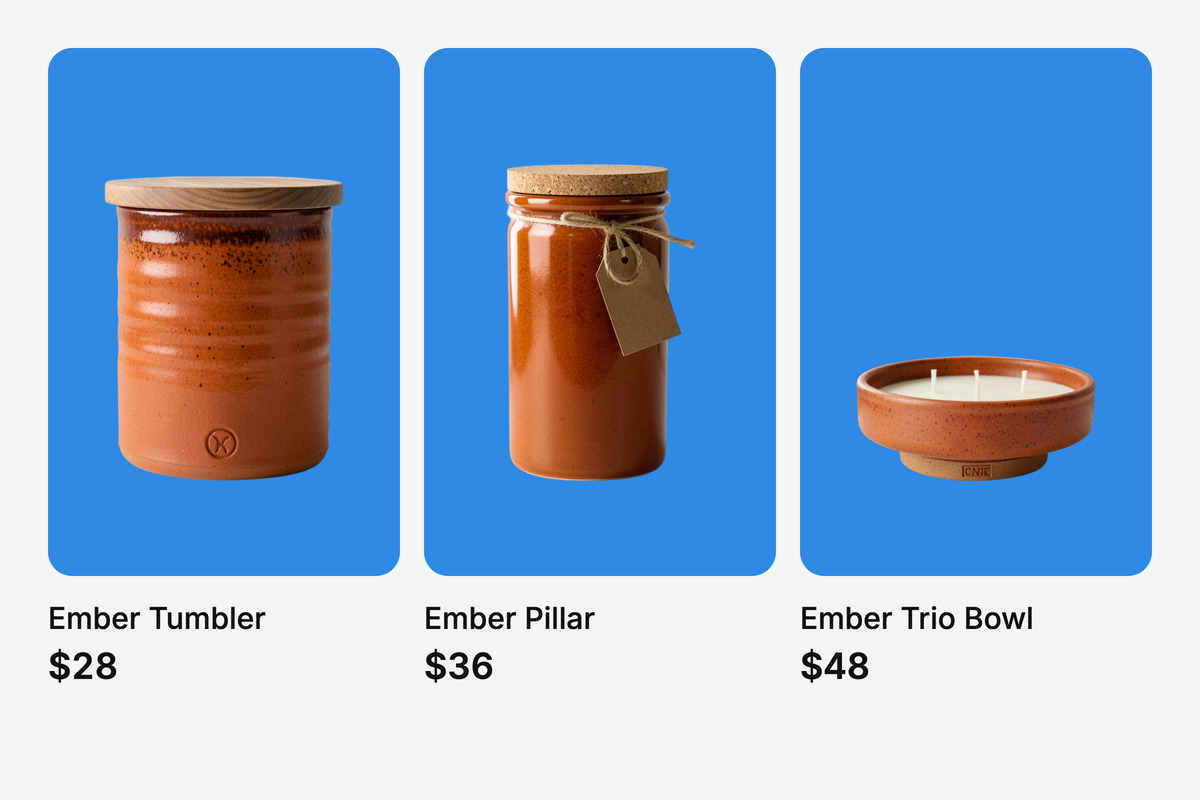
Place every product in your catalog on one shared blue backdrop for a consistent look. A plain backdrop keeps the focus on each item. Shoppers can compare shapes and finishes more easily. Add an AI Shadow to give the item depth instead of leaving it visually flat. Keep the blue consistent from image to image to make the collection feel like it belongs together.
Turn a selfie you like into a profile picture with a soft blue backdrop. Replace a busy room with a plain color that keeps attention on your face. If your shirt is blue too, try a slightly lighter or deeper background and check that your shoulders stay distinct. Use the finished portrait wherever you want a calm, approachable first impression.

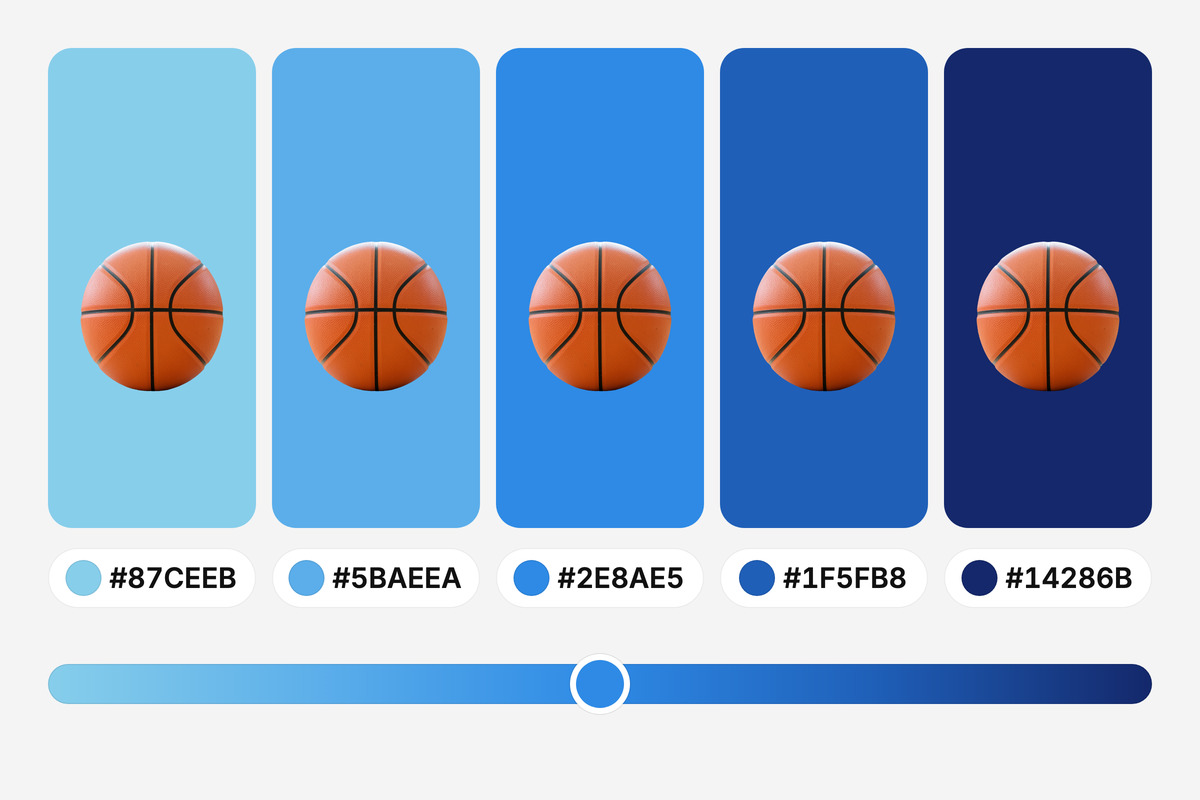
Match a blue from your brand guide or find a shade that flatters your photo. Browse the shades by eye or type the hex code for a blue you already know. Choose sky blue for a lighter feel or go toward navy for a darker finish. Save the hex code you settle on as a reference for your next edit.
Build a scene that feels right for the subject of your photo. In Pixelcut’s AI Background Generator, describe the setting you have in mind. Give the generator a sense of how the light and surroundings should feel. It creates a backdrop from the prompt. Start from the same original photo to make a detailed scene alongside your plain blue version.

Unify a product range with one blue background across every shot without editing each image individually. Use the Bulk Background Changer with Pixelcut Pro to set a shared color across a batch on the web. For an automated workflow, use Pixelcut’s Background Remover API to get your cutouts. Then add the same blue background across your images, including new photos as they come in.

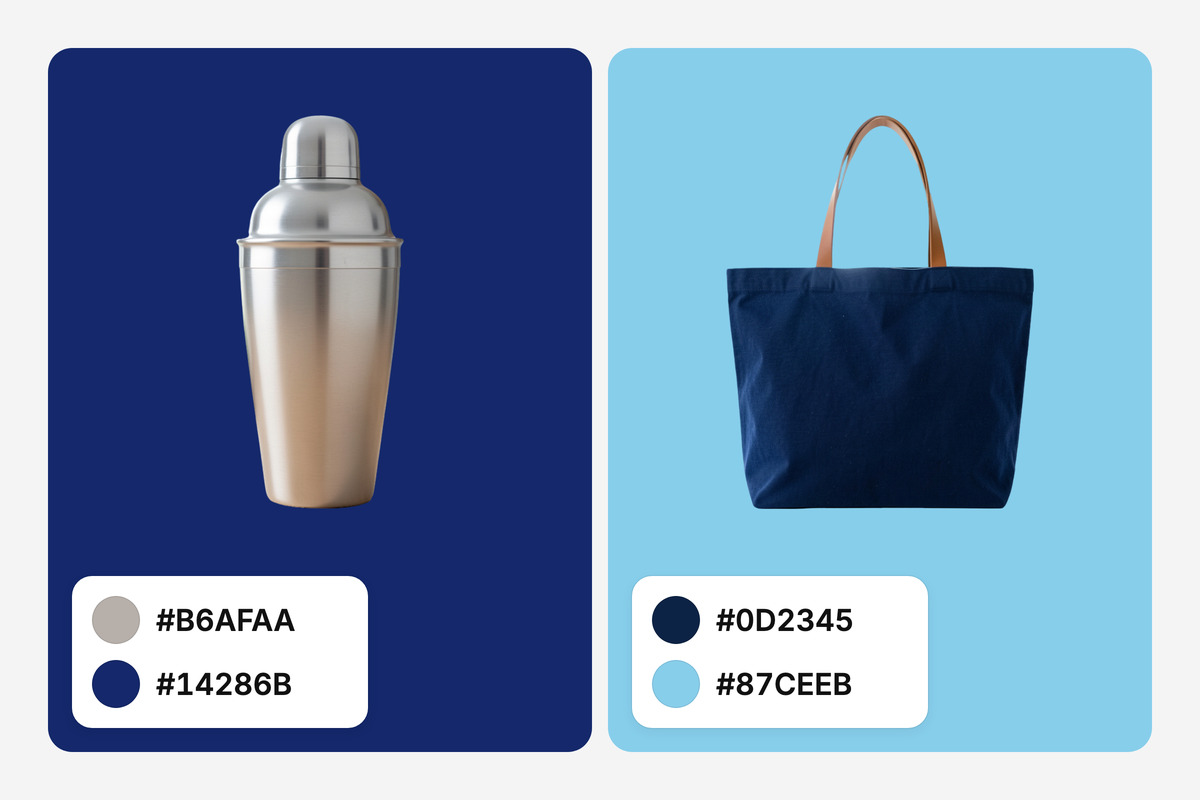
A blue background suits a detailed subject that needs a quieter setting. Pale blue works when you want the frame to feel light. Navy gives cream or silver objects a clearer outline. A muted blue is also useful behind a warm detail such as copper or orange. When the subject contains blue as well, a clear difference in brightness helps keep the edges visible.
Trusted by creatives at











Great app, easy to use. Helps our small business save time and money to create different marketing materials professionally. Thank you.
I need a good background remover for my work and I've been through them all it feels like. This one is the best by far. It's so easy to use and the results always look amazing. Thank you Pixelcut!
It's amazingly easy and gives the perfect results for my bags and accessories. It looks like it was done by a professional photographer.