My favorite app
Great app, easy to use. Helps our small business save time and money to create different marketing materials professionally. Thank you.
Give a product or portrait a bold red background. Pixelcut removes the original backdrop and you pick the shade. Upload a photo to get started.
Upload a portrait or a product shot straight from your phone or computer. A cluttered room or a busy shelf behind your subject is no problem at all for this tool.
Pixelcut’s AI picks out your subject and removes the wall, room or shelf behind it automatically. Your photo then opens in the editor as a cutout, ready for its new look.
Head to the Background options and open the color picker. Pick any red you like, from a bright red to a deep maroon. Keep adjusting until the shade feels just right.
Download the finished image when it looks right to you. Your photo on red is ready to brighten a sale post, a new profile photo or the product pages of your shop.
Get a photo ready to use when the original backdrop feels out of place. With Pixelcut, a red background can give the same shot the look you had in mind. Keep the moment or angle that made the image worth saving. Changing the backdrop gives you more flexibility to work with a photo taken in a place you couldn’t control.

Make a product the focus of your listing or ad with red behind it. A plain red backdrop gives the item its own space and clears away visual clutter. Let the finish of the product guide how bold you go. Use a richer red to frame a light item. Carry the shade through your other listing images for a consistent set.

Give your profile photo a bolder first impression with a vivid red backdrop. Use a portrait you already like and replace the room behind you with solid color. Choose a red that makes your face stand out against the background. Keep the look simple enough to read even when your profile picture appears as a small icon beside a post.

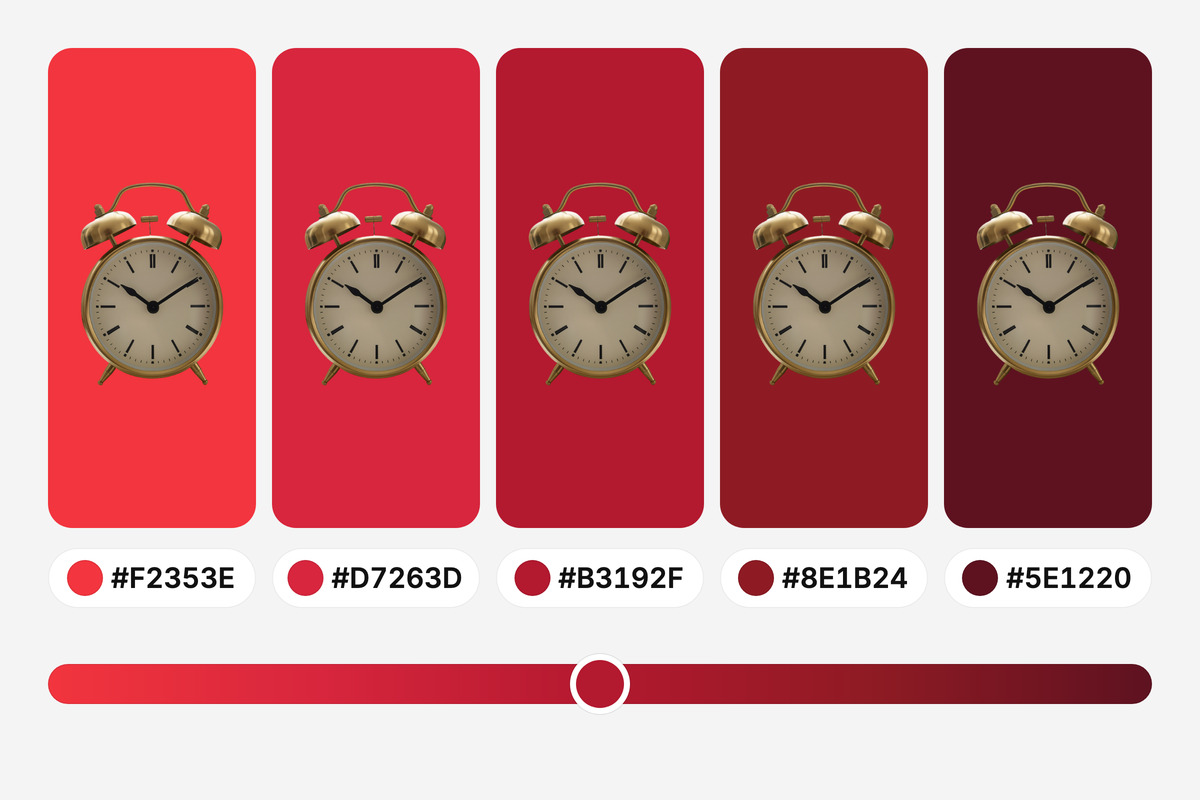
Find a shade of red that fits the tone of your photo. Bright red brings more energy to the frame. Maroon gives the same image a deeper and more subdued finish. Move through the color picker until the shade looks right against your subject. If you already have a specific red in mind, enter its hex code to get that color.
Set your subject in a scene made for the story you want to tell. Use Pixelcut’s AI Background Generator to create a backdrop from your description. Tell it what kind of space you want and how you want the light to feel. You can keep red as part of the scene or take the photo in a different direction without arranging another shoot.
Carry one red across a full set of photos without repeating each edit by hand. Apply the shade to your batch in the Bulk Background Changer with Pixelcut Pro on the web. If your images already run through an automated workflow, remove the old backgrounds with Pixelcut’s Background Remover API. Then place your red behind each cutout in your own workflow before export.

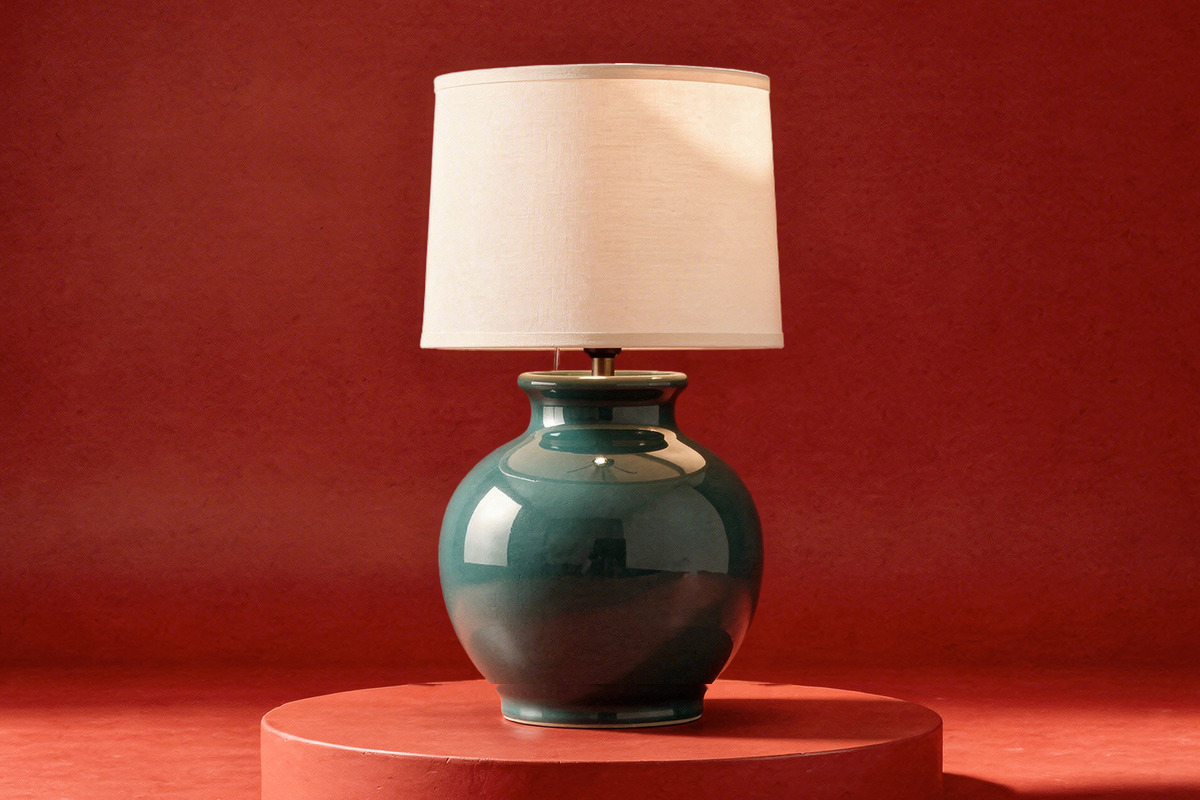
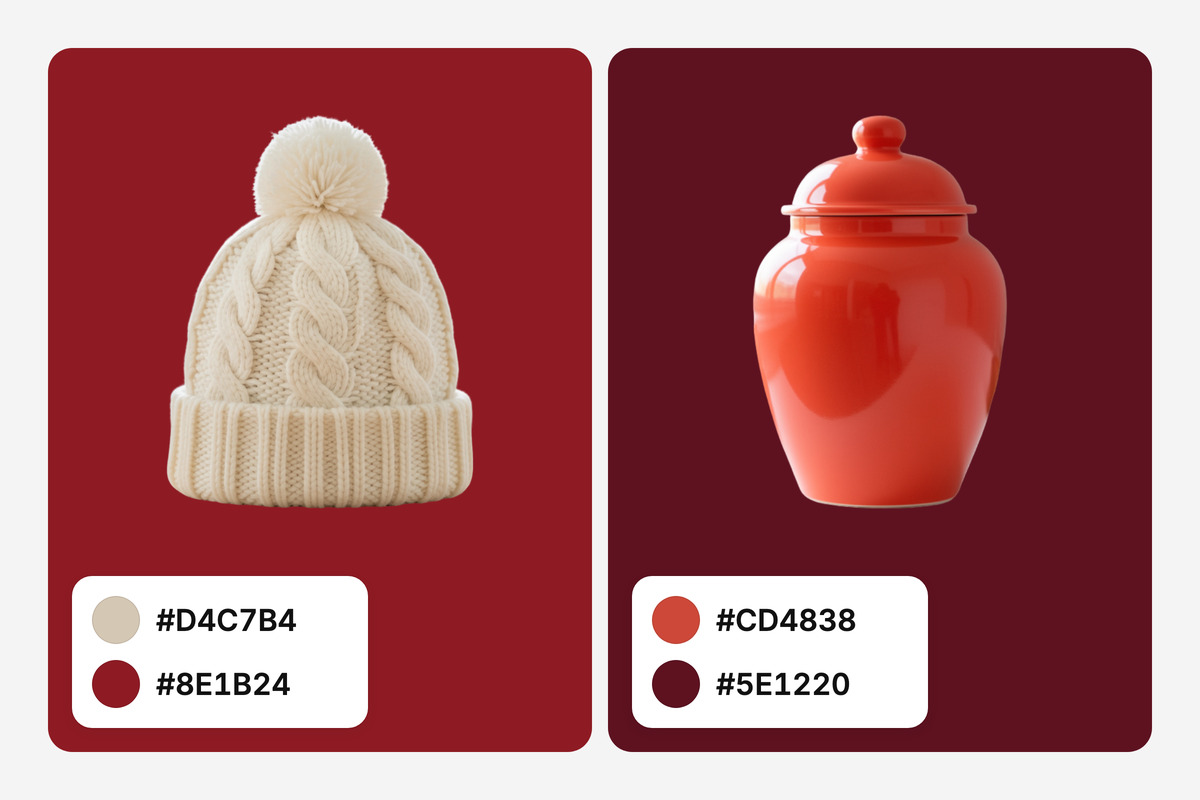
Reach for red when the setting should feel bold and confident. Deep red provides a clear outline for white and cream subjects. A coral or red object needs more separation if its color is close to the backdrop in brightness. In a close portrait, red works well when the other colors in the frame are quiet enough to keep attention on the face.
Trusted by creatives at











Great app, easy to use. Helps our small business save time and money to create different marketing materials professionally. Thank you.
I need a good background remover for my work and I've been through them all it feels like. This one is the best by far. It's so easy to use and the results always look amazing. Thank you Pixelcut!
It's amazingly easy and gives the perfect results for my bags and accessories. It looks like it was done by a professional photographer.