My favorite app
Great app, easy to use. Helps our small business save time and money to create different marketing materials professionally. Thank you.
Brighten a product shot or profile picture with a yellow background in Pixelcut. Choose the shade that fits your photo. Upload your image to get started.
Upload the product shot or portrait you already have from your phone or computer. A busy shelf or a cluttered room in the shot is fine. No reshoot needed.
Pixelcut’s AI lifts your product or portrait away from its old background automatically. The hard part is done for you, with no editing skills needed.
Go to the Background options and open the color picker. Choose any yellow you like, whether that is a soft butter tone or a rich, warm gold.
Download your photo on yellow for a listing, a banner or a cheerful profile picture. A product can get a soft shadow first if you want one.
Get more use out of a photo you would have set aside because of the setting. A yellow background in Pixelcut lets you give the image a look that fits where it will appear. The subject you wanted to capture can stay as it is. That makes it easier to use a quick photo even when the original surroundings feel too busy.

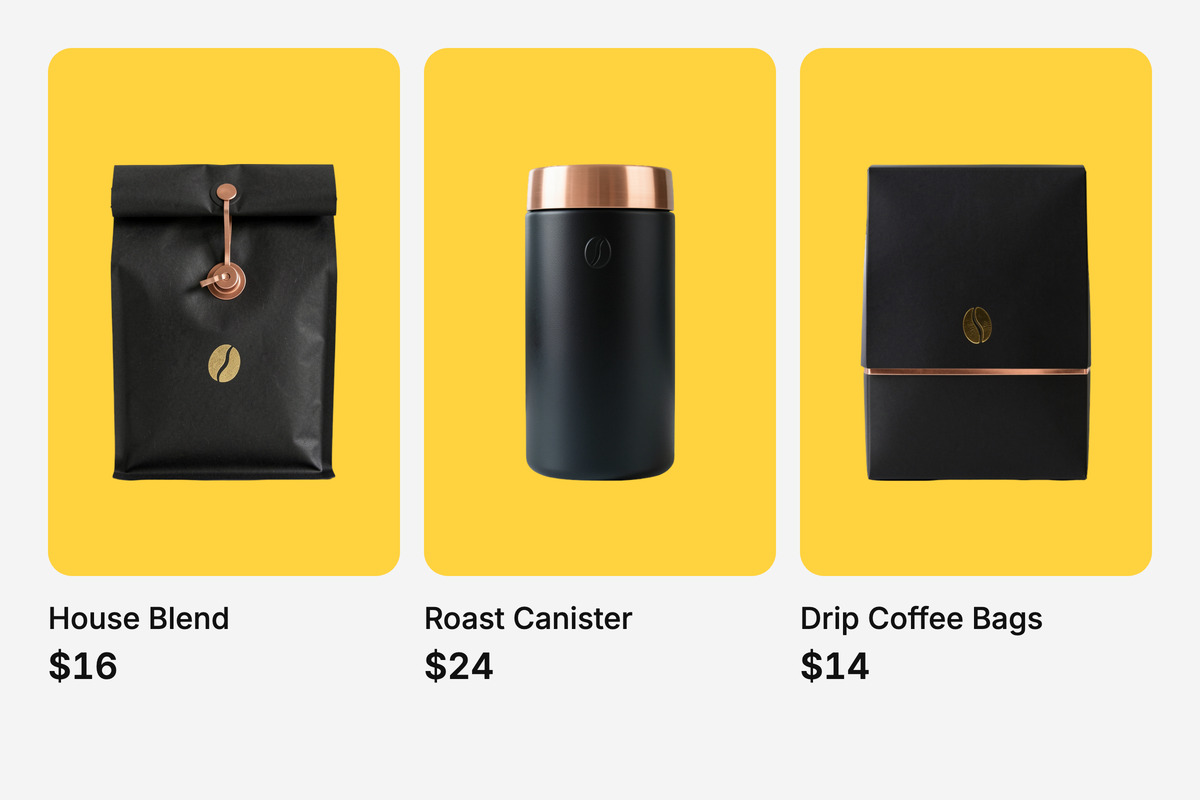
Help your products catch the eye in a busy feed. Put bright yellow behind simple packaging to bring energy to a launch across your social channels. Keep that shade consistent during the campaign. A shared backdrop connects each image to the next while the items themselves remain easy to recognize. Keep the product as the main focus throughout the set.
Put a cheerful yellow backdrop behind your profile picture. Update a selfie you already like without taking focus away from your expression. Choose a shade that sits comfortably beside what you are wearing in the original photo. Match the shade to your brand if it already uses yellow. Bring that familiar color from your regular social posts to your profile picture.

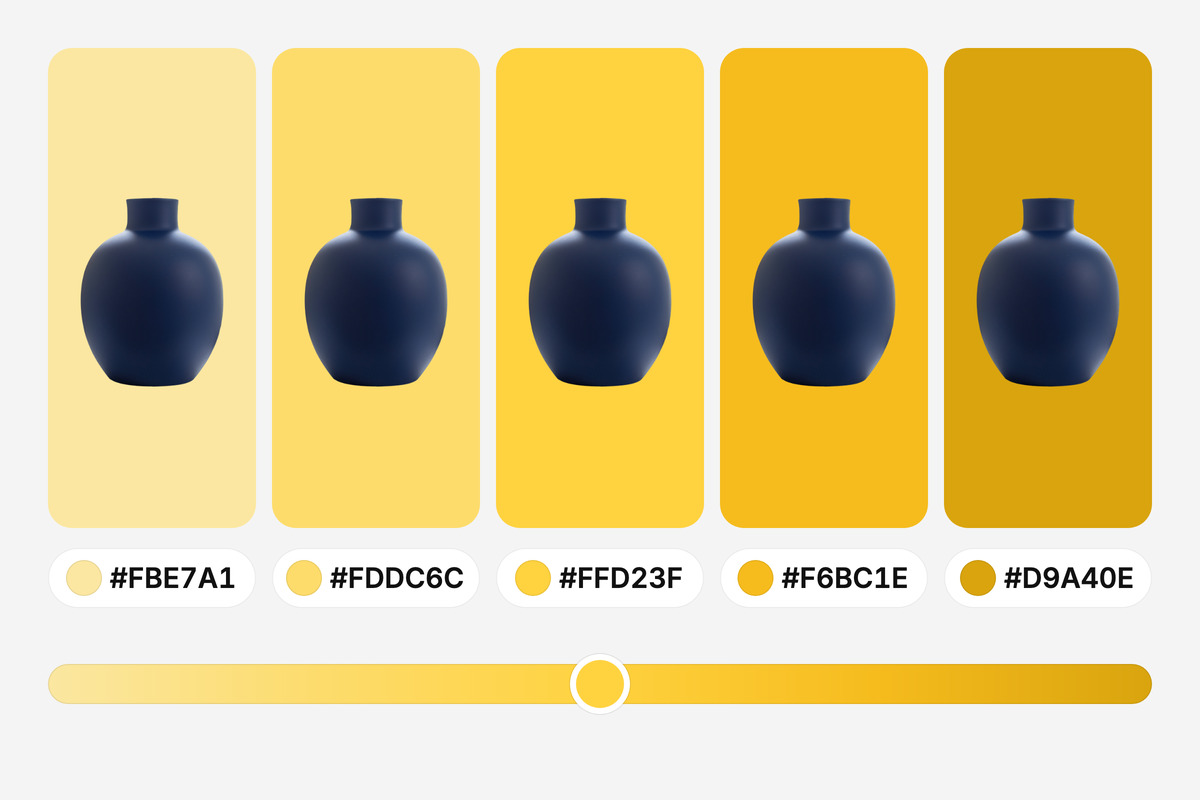
Find a yellow that complements the rest of the image. Choose butter yellow to keep the backdrop subtle. Move toward gold for a richer backdrop with more depth. Compare the options beside the colors already in the image as you adjust your choice. A small shift in shade can help a single photo fit better with the rest of the campaign.
Build a photo backdrop from a written idea with Pixelcut’s AI Background Generator. Describe the kind of place you want behind your subject. Add details about the lighting and textures to give the scene its mood. Keep a solid yellow version for a simple product image. Try a generated scene when the same subject needs a setting that adds more context.
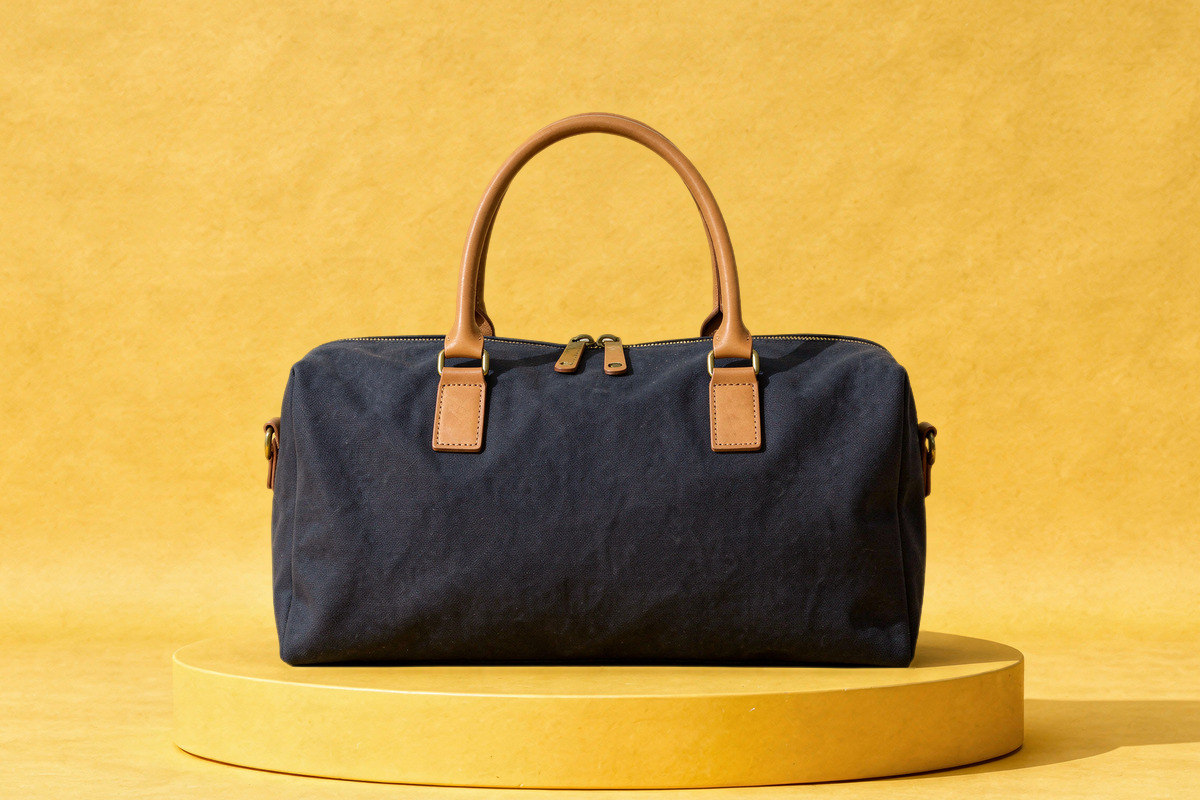
Give an entire image set one yellow background with the Bulk Background Changer with Pixelcut Pro on the web. Apply your campaign color to the batch. Every photo in the set comes back on the same yellow. To run the job at scale, use Pixelcut’s Background Remover API to remove backgrounds automatically. Then add the same shade across all your images.

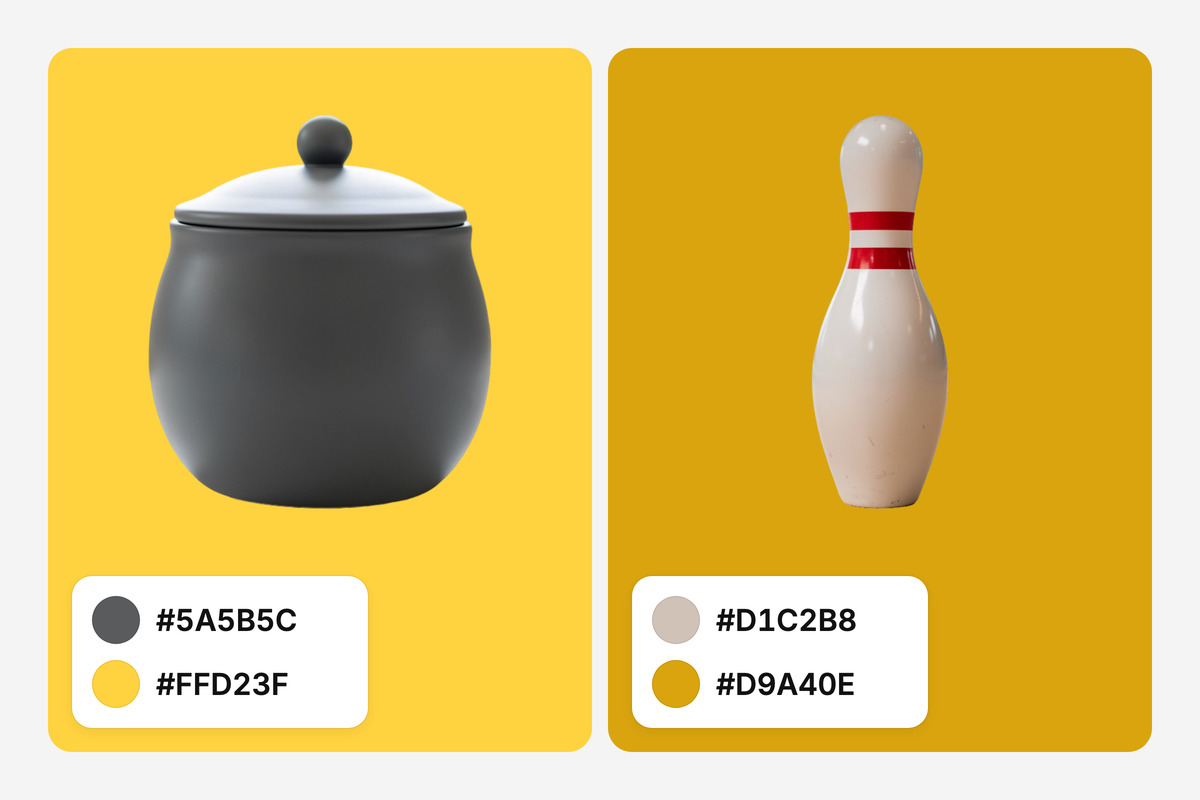
A yellow backdrop works when you need a brighter setting for a neutral subject. Charcoal or dark blue stays distinct on bright yellow. Cream can blend into a pale yellow background when the two are close in brightness. A deeper gold gives a pale subject a clearer outline. That difference is especially useful when the image will be seen as a small thumbnail.
Trusted by creatives at











Great app, easy to use. Helps our small business save time and money to create different marketing materials professionally. Thank you.
I need a good background remover for my work and I've been through them all it feels like. This one is the best by far. It's so easy to use and the results always look amazing. Thank you Pixelcut!
It's amazingly easy and gives the perfect results for my bags and accessories. It looks like it was done by a professional photographer.